Understanding SSD and HDD Storage: Speed, Lifespan, Failure Rates, and Important Data Protection Tips for Computer Users
SSD and HDD storage comparison highlights differences in speed, reliability, lifespan, and failure rates. Learn why SSD drives deliver faster performance, common storage failure reasons, and practical tips to protect computer storage and prevent data loss.
 Tech Author
When choosing digital storage for a computer or laptop, most people come across two main options — HDD (Hard Disk Drive) and SSD (Solid State Drive). Both are used to store files, operating systems, apps, and personal data. But the big question many users ask is: Which one is better — SSD or HDD?
At first glance, SSD clearly wins in terms of speed, but there are other factors to consider such as reliability, lifespan, and cost. Understanding the difference between SSD vs HDD storage can help users choose the right drive for their needs.
How HDD and SSD Work
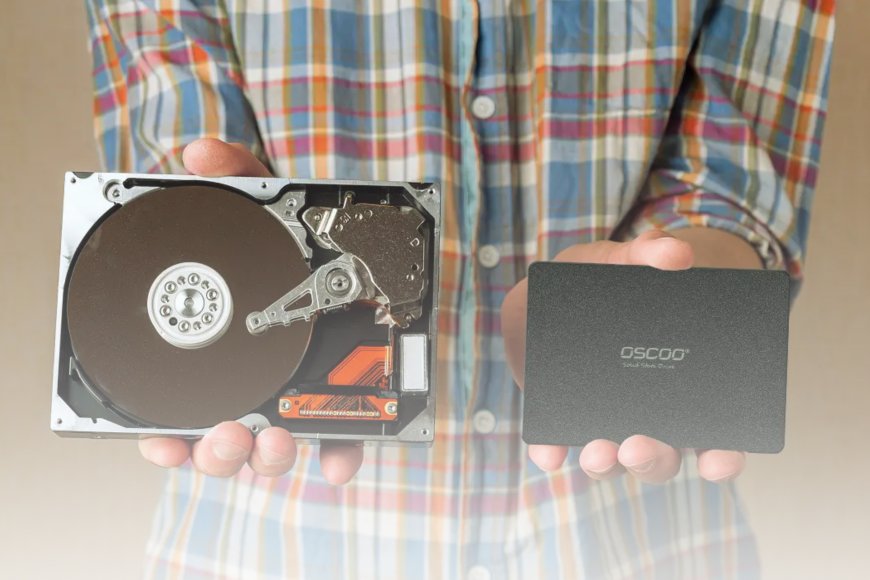
A traditional Hard Disk Drive (HDD) is a mechanical storage device. It stores data on spinning magnetic disks called platters. These disks rotate at speeds of around 7,200 RPM (Revolutions Per Minute), while a small mechanical arm reads and writes the data. Because HDDs have moving parts, they are more vulnerable to physical damage, vibration, and shock. For example, if a laptop with an HDD falls or experiences strong movement, the drive can get damaged.
Solid State Drives (SSDs) function quite differently. SSDs use NAND flash memory to store data and do not have any moving parts. This makes them more faster than HDDs, more resistant to physical damage, and suitable for current computers and laptops. This is why many modern laptops and PCs now include SSD storage instead of HDD.
Why SSDs Are Faster Than HDDs
One of the biggest advantages of SSDs (Solid State Drives) is their speed. Unlike traditional HDDs, SSDs do not rely on spinning disks or mechanical parts to read and write data. Because of this, they can access and transfer data much faster. This speed improvement leads to several benefits for users. For example, computers with SSDs have much faster boot times, meaning the system can start in just a few seconds. File transfers are also quicker, and applications or games open and run more smoothly. In addition, SSDs help improve overall system performance and multitasking, allowing users to run multiple programs at the same time without slowing down the computer. In simple terms, a computer with an SSD feels much faster and more responsive compared to one that uses a traditional HDD.
SSD Lifespan and TBW Explained
Even though SSDs are faster, they do have a limitation. Each flash memory cell inside an SSD can only be written a limited number of times before it begins to wear out.
Manufacturers measure this using a rating called TBW (Terabytes Written). This shows how much data can be written to the drive over its lifetime. For example: A 1TB SSD may have a TBW rating of around 600TB. Even if someone writes around 50GB of data every day, it would still take many years, even decades, to reach the TBW limit.
When SSDs fail, it usually happens because of flash memory wear over time, power surges, overheating, or controller issues inside the drive. Unlike HDDs, SSDs usually do not show clear warning signs like clicking sounds, and failure can sometimes happen suddenly. This is why experts always recommend regular data backups, regardless of whether you use an SSD or HDD, to protect important files from unexpected data loss.
Here are effective ways to prevent SSD failure:
- Keep 10–20% free space on the SSD to maintain performance and reduce stress on the storage cells.
- Use a UPS or surge protector to protect the SSD from sudden power cuts and voltage spikes.
- Ensure proper cooling and ventilation to prevent overheating, which can damage SSD components.
- Enable TRIM support so the SSD can manage storage efficiently and reduce unnecessary writes.
- Avoid frequent heavy data writing to reduce wear on flash memory cells.
- Regularly back up important data to protect files in case the SSD fails unexpectedly.
How Long Do HDDs Last?
Unlike SSDs, HDD (Hard Disk Drive) lifespan is usually measured in years, and most manufacturers estimate that a hard drive typically lasts around 4 to 7 years. Since HDDs contain mechanical parts like spinning disks and moving arms, they are more sensitive to physical conditions. Hard drives can fail due to physical shock or dropping, excess vibration, high temperatures, and normal wear and tear over time.
To prevent hard disk failure and protect your data, users should follow a few simple precautions:
- Avoid dropping or shaking devices that contain HDDs, especially laptops.
- Keep the computer in a cool environment to prevent overheating.
- Ensure proper ventilation so the hard drive does not get too hot during long use.
- Use a UPS or surge protector to protect the system from sudden power cuts or power surges.
- Regularly back up important data to an external drive or cloud storage.
Following these simple steps can extend the life of a hard disk and reduce the risk of unexpected data loss.
Real Data: SSD vs HDD Reliability
Large storage studies also suggest that SSDs are generally more reliable than traditional hard drives. Cloud storage company Backblaze studied thousands of storage drives used in its data centers to compare failure rates. According to the report, SSDs had an annual failure rate of around 0.98%, while HDDs showed a higher failure rate of about 1.64%. This data indicates that SSDs tend to fail less frequently than mechanical hard drives. However, it is important to remember that both SSDs and HDDs can eventually fail over time, which is why keeping regular backups of important data is always recommended.
Important Advice for All Computer Users
Whether you choose SSD or HDD storage, one thing is certain that every storage device will eventually fail. Experts strongly recommend:
- Regularly back up essential files.
- Using external hard disks or cloud storage
- Avoid inexpensive or secondhand storage disks.
Backing up your data can help keep essential documents, images, and work files safe from permanent loss.
When comparing SSD vs HDD, SSDs clearly offer better speed, stronger durability, and lower failure rates. However, HDDs still remain a cheaper option for large storage capacity.
For most users today, the best solution is often a combination of SSD for speed and HDD for storage.