Common Mistakes That Can Reduce Performance and Lifespan of SSDs
Improper cooling, dust buildup, power surges, and outdated firmware can reduce SSD lifespan and performance. Experts recommend regular cleaning, proper airflow, surge protection, and backups to improve SSD health and protect important data.
 Tech Author
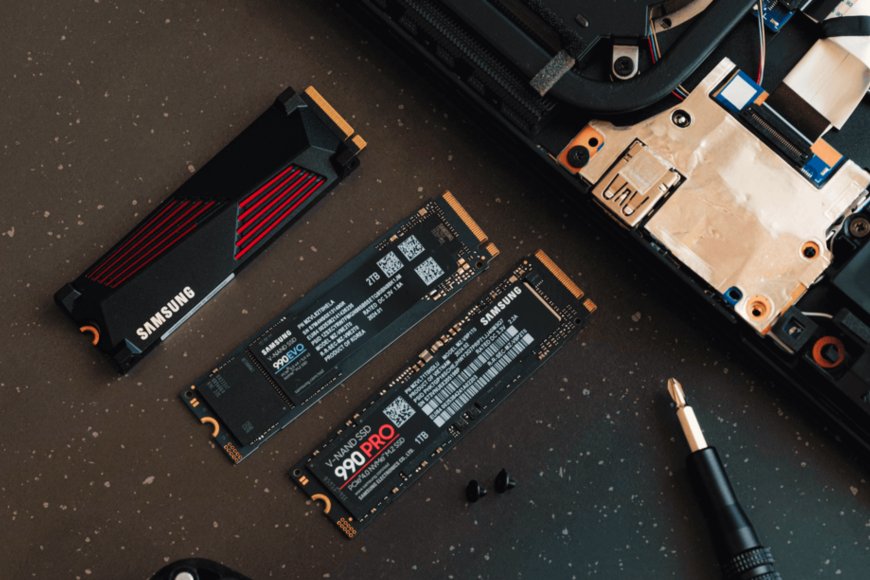
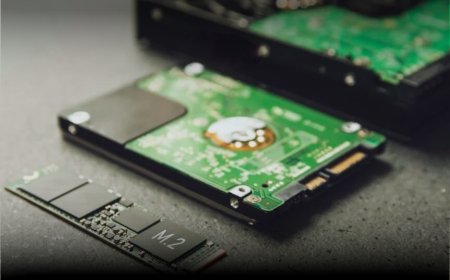
Solid-state drives (SSDs) have become the preferred storage solution for modern PCs and laptops due to their high speed and performance. However, many people are unaware that SSDs also have a limited lifespan. SSDs, like all storage devices, can gradually lose performance over time, particularly if sufficient maintenance and care are not followed.
According to experts, most recent SSDs are designed to last for several years with normal use. However, certain typical mistakes can shorten SSD lifespan, raise overheating risks, and degrade overall system performance.
Dust Build-Up Can Affect SSD Performance and Cooling
Dust accumulation within PCs and laptops can have a significant impact on system cooling and overall SSD performance. When dust clogs air vents, cooling fans, and airflow paths, heat accumulates around critical hardware components, including the SSD. This problem is especially widespread with laptops, which have limited internal space and smaller cooling systems. Dust buildup can cause overheating, resulting in slower boot times, delayed file transfers, decreased gaming performance, and general system latency. Excessive heat can also shorten the lifespan of SSDs. Regularly cleaning the PC with compressed air or proper cleaning tools improves ventilation, maintains optimum temperatures, and keeps the SSD running smoothly.
Poor Cooling Can Reduce SSD Lifespan and Performance
Excessive heat is a major cause of SSD performance troubles and long-term hardware damage. SSDs feature critical components such as NAND flash memory, controllers, and cache systems that are intended to function at safe temperatures. If the SSD is subjected to extremely high temperatures on a frequent basis, it may experience thermal throttling, slower read and write speeds, reduced system performance, and long-term wear. Poor airflow inside a PC cabinet or laptop can trap heat and increase the risk of overheating, particularly when gaming, video editing, or working with high workloads. Experts propose using SSD heatsinks, appropriate airflow, cooling fans, and dust-free ventilation systems to increase cooling and SSD health.
Power Surges and Sudden Shutdowns Are Risky
Unexpected power cuts, sudden shutdowns, and voltage fluctuations can negatively affect SSDs and other important computer components. When a system suddenly loses power during file transfers or background processes, it may lead to data damage or even operating system issues. Power surges can also place excessive electrical stress on storage devices and internal hardware, increasing the risk of permanent damage over time. To protect computers from these problems, experts recommend using a UPS (Uninterruptible Power Supply) and surge protectors. These devices help provide stable power, prevent sudden shutdowns, and reduce the chances of hardware damage during power outages or voltage spikes.
Backup Important Data Regularly
Even though SSDs are generally reliable, no storage device is fully immune to failure. Users should make regular backups of crucial files and documents. Using external disks, cloud storage, or backup software can help you avoid data loss in the event of device failure or accidental damage.
Conclusion
Modern SSDs are designed to deliver fast performance and long-term reliability, but proper maintenance is still necessary to keep them working efficiently. Experts recommend improving airflow, cleaning PCs regularly, using heatsinks, protecting systems from power surges, and maintaining regular backups to reduce the risk of overheating and data loss. Keeping SSD firmware updated is also important, as updates can improve drive stability, performance optimization, and storage management features. Following these simple maintenance practices can help users extend SSD lifespan, improve system performance, and protect important data from unexpected hardware issues.
This article is based on information from XDA