Hard Drive Health Guide: Warning Signs, S.M.A.R.T. Checks, and Backup Best Practices
Recognizing hard drive failure warning signs, monitoring HDD health with S.M.A.R.T., following the 3-2-1 backup strategy, and replacing aging hard drives can significantly reduce the risk of unexpected data loss.
 Tech Author
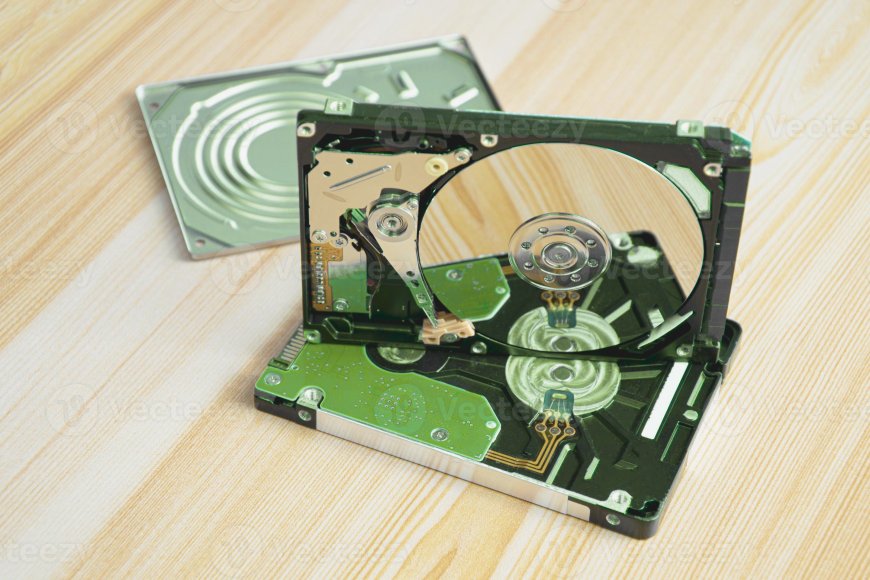
Although SSDs are now known as the preferred storage choice due to their speed, traditional hard disk drives (HDDs) continue to be commonly utilized for storing large files, backups, images, videos, and other material that does not require immediate access. Experts say hard drives are still a reliable storage choice, but users should keep in mind that every mechanical hard disk has a limited lifespan.
Unlike SSDs, hard drives have moving parts that wear out over time. Every HDD contains spinning platters and read/write heads. As these components age, the likelihood of hardware failure gradually increases. While some hard drives can last for years without issue, others may fail considerably sooner, making it difficult to determine their exact lifespan.
Common Signs That a Hard Drive May Be Failing
According to experts, hard drives often show warning signs before they completely stop working. Paying attention to these indications might help users back up critical files before they are lost.
Some common warning signs include:
- Clicking or grinding noises from the drive
- Slow file transfers and poor system performance
- S.M.A.R.T. warning messages during startup
- Read or write errors while opening or saving files
- The hard drive not being detected immediately after booting
If users notice any of these problems, they should immediately copy important data to another storage device or cloud service.
Use S.M.A.R.T. Tools to Check Drive Health
Most current hard drives have a built-in monitoring system called S.M.A.R.T. (Self-Monitoring, Analysis, and Reporting Technology). This technology monitors the drive's health and detects any hardware issues before it fails completely. Experts advise checking essential information such as reallocated sectors, pending sectors, spin-up time, and read error rates.
Always Keep Multiple Backups
Cybersecurity and storage experts highly advise using the 3-2-1 backup strategy to safeguard valuable data. This includes creating three copies of key files and storing them on two different types of storage media, with one backup in a separate location or cloud storage. Automatic backups are also recommended to secure fresh files without requiring human backups.
Replace Old Hard Drives Before They Fail
Experts recommend treating hard drives as replaceable hardware rather than waiting for them to fail completely. For systems that store critical business or personal data, replacing hard drives every three to five years can greatly reduce the chance of unexpected data loss. Older drives can still be used for non-critical files, but newer drives store valuable data.
Hard drives continue to play an important role in data storage, but they are not designed to last forever. Regular health checks, timely backups, and replacing aging drives can help users avoid unexpected failures and keep important data safe for the future.
This article is based on information from How to Geek